Claude Code for Beginners: How to Set Up Your First Project From Scratch
By Akil, Head of RevOps at Leadle · Updated November 2026
Claude Code is Claude working inside a project folder on your computer: it reads your files, follows your written rules and uses your tools. To start, install the Claude desktop app, open the Code tab, create a folder, write a short CLAUDE.md with your rules, and run one small job on a CSV. No coding needed.
Key takeaways
- Claude Code is the same Claude, with a desk in your office. It can read, write and act on your files. Chat can only answer.
- You don't need to code. You need a process document, your business rules and some data.
- Three things to learn: the project folder, the CLAUDE.md rules file, and the modes that control how much Claude asks you first.
- Keep CLAUDE.md short, and never put keys or tokens in it.
- Start on Sonnet, in a mode where you approve each step, with a small CSV.
- Fix problems by changing the rules, then run again.
New to this? Watch first. This is the first session in our "Level up with Claude Code" series, led by Akil, Head of RevOps at Leadle. It's a zero-code, beginner session. It explains how Claude Code differs from chat, how to set up a project folder, and builds an account-segmentation agent live.
Get Started with Claude Code:Build a Working AI Agent for Sales & GTM #claudecode #claude #claudeai Get Started with Claude Code: Build a Working AI Agent for Sales & GTM.
In this guide: What it is · Who it's for · The terms · Before you start · Install and first project · The folder · CLAUDE.md · Memory · Secrets · Models · Modes · First workflow · Fixing mistakes · Usage limits · Common mistakes · What's next · FAQ
What is Claude Code, and how is it different from Claude chat?
Claude chat answers a question and the conversation ends. Claude Code is the same model working inside a folder on your computer: it reads your files, follows your rules, uses your tools and keeps going across a task. The difference isn't intelligence. It's what Claude can touch.
|Think of chat as a brilliant consultant on a phone call. You ask, it answers, the call ends. Claude Code is the same consultant with a desk in your office. It can go through your files, it knows your business process and offering, it can use your tools, and it remembers what you decided yesterday. It hands back finished work, not just a reply in a chat window.
In practice, Claude Code can:
- Read your files. CSVs, markdown, call transcripts, documents, spreadsheets: anything in the project folder.
- Write and edit those files.
- Keep context and memory of the project.
- Follow a set of project rules, held in a file called CLAUDE.md.
- Use external tools that have an MCP connection or an API: your CRM, calendar, Slack and sales engagement tools.
- Run commands in batches, search the web and run scripts, so you work at volume, not one file at a time.
Everything else follows from one idea: Claude, with access to your files and tools.
What do the terms mean?
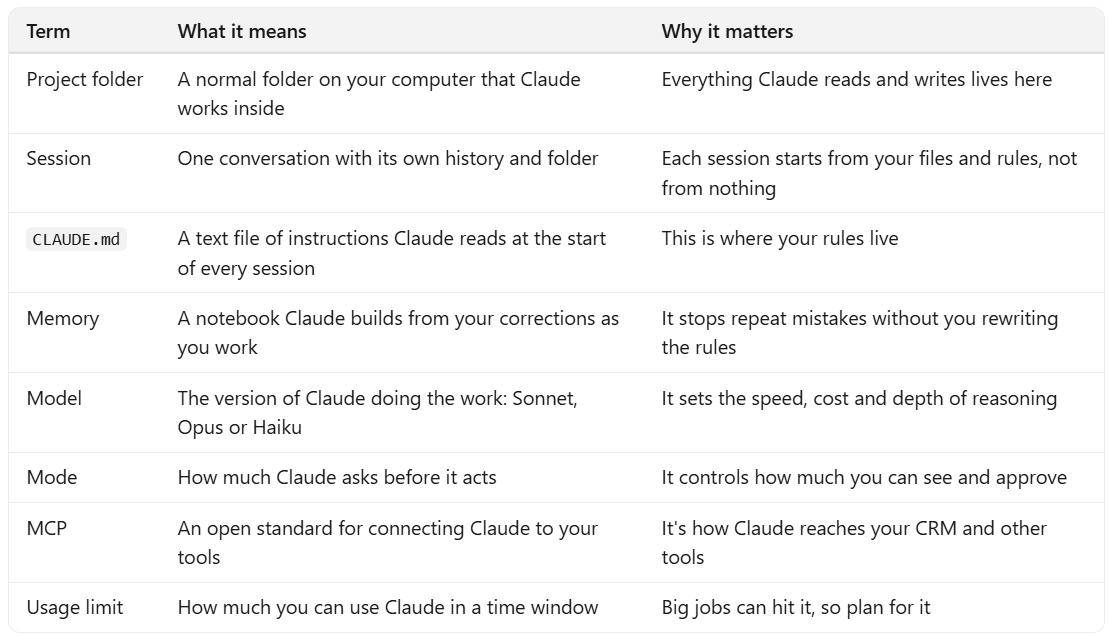
You'll hit a handful of terms in your first hour. Here they are in plain words.
Claude Code terms, in plain words
💡What do you need before you start?
- A Claude account that includes Claude Code. Check your plan on Anthropic's site.
- The Claude desktop app.
- One job in mind, written down as steps. For GTM, sorting a list of accounts against your ICP is a good first one.
- A small CSV, around 50 to 100 rows, so a run finishes quickly.
How do you install Claude Code and start a project?
- Download the Claude desktop app from Anthropic. It's available for Mac and Windows, with a Linux version in beta. Anthropic's desktop guide has the details.
- Sign in and open the Code tab. The app also has chat, which is the regular Claude. Code is the tab you want.
- Create an empty folder called something like account-segmentation-agent.
- Start a new session and choose that folder as the project. In the Code tab, each session has its own history and project folder.
- Check it works. Ask "where is this directory, and what's in it?" An empty folder should be reported as empty.
The desktop route skips the terminal setup, which is different on each operating system. If you'd rather use a terminal, Anthropic's docs cover that.
What does a project folder look like?
A beginner project needs four things: a CLAUDE.md file, an input folder, an output folder and a README.md. The CLAUDE.md is the brain. The input folder holds what you want processed, the output folder holds the results, and the README describes the project.
account-segmentation-agent/
├── CLAUDE.md the rules (the brain of the project)
├── README.md a short description of the project
├── input/ drop your CSV here
└── output/ results land here
You don't have to create these by hand. In the webinar, we asked Claude to set them up from one prompt, and it created the folders and the file. The CLAUDE.md it wrote wasn't generic, because the prompt described the real job.
What is CLAUDE.md, and how do you write one?
CLAUDE.md is the instruction file Claude reads at the start of every session. It's plain text in your project folder, and it holds your rules: what the project is, how to do the work and what the output should look like. Because Claude reads it every time, it doesn't guess or forget.
Treat it like a job description for an AI hire. Anthropic's documentation says Claude treats these files as context, not as enforced settings, so how you write them changes how reliably Claude follows them. Write instructions concrete enough to check, and don't let two rules contradict each other, because Claude may pick one arbitrarily. See Anthropic's page on how Claude remembers your project.
A simple GTM CLAUDE.md has six parts:
# Identity
You are an account segmentor for a B2B software company.
# Input
A CSV in the input folder with company name, industry, employee count, revenue and funding stage.
# Step 1: clean the list
Check each row, fix obvious errors such as a misspelt domain, and remove duplicates.
# Step 2: apply the ICP rules
Industries that qualify: [...]. Industries to exclude: [...].
Employee size: [...]. Revenue: [...].
Priority: exclude beats everything. Review beats sequence.
If an account passes every rule, it goes to sequence.
# Output
Put results in the output folder: a summary (total accounts and the count in each bucket) and a CSV with the reason for each account.
# Edge cases
Borderline accounts go to review. B2C companies are always excluded.
💡How long should it be? Short. Anthropic's guidance is to aim for under about 200 lines, because longer files use more context and Claude follows them less reliably. If you write 50 pages on day one, it will break by day three. Start with one or two pages, and add a rule whenever you spot a gap. Don't try to predict every edge case up front.
💡If your columns don't match, tell Claude in the file. If your database calls headcount "staff count" instead of "employee count", or uses "ARR" for annual revenue, say so. It usually works it out anyway, but you don't need a perfect schema, just a willingness to clarify.
What is memory, and how is it different from CLAUDE.md?
- CLAUDE.md is the rules. You write it once and edit it when your process changes.
- Memory is the notebook. If Claude makes a mistake and you correct it, it can save that, so the next run doesn't repeat it.
Both are loaded into context at the start of a session. You can view and edit memory from inside Claude Code. The practical rule: put your standing instructions in CLAUDE.md, and let memory capture the small corrections that come up as you work.
What should you never put in CLAUDE.md?
Never put API keys, tokens, passwords or any sensitive information in it. It's for instructions only. Credentials belong in a separate environment file, because anything in a project can end up exposed, for example if it's later pushed to a public GitHub repository.
Also don't rely on CLAUDE.md to enforce security. Anthropic notes that Claude treats it as guidance, not as a hard block. If something must never happen, don't give Claude access to it in the first place.
Which Claude model should you use?
Start with Sonnet. It handles most work, and it's fast and fairly priced. Use Opus when the task needs harder reasoning or judgment. Use Haiku for simple, mechanical jobs. If you find yourself arguing with the agent, switch to Opus.
- Sonnet: the default. In our webinar it handled about 90% of the work.
- Opus: for harder logic and judgment. It's slower and costs more.
- Haiku: for bulk, mechanical work such as reformatting files. Don't rely on it for reasoning.
What are modes, and which one should you start in?
A mode sets how much Claude asks before it acts. Start in a mode where you approve each step so you can see what it does. Use plan mode for big or risky tasks, and move to auto only after the workflow runs the way you want.
Modes, and when to use each
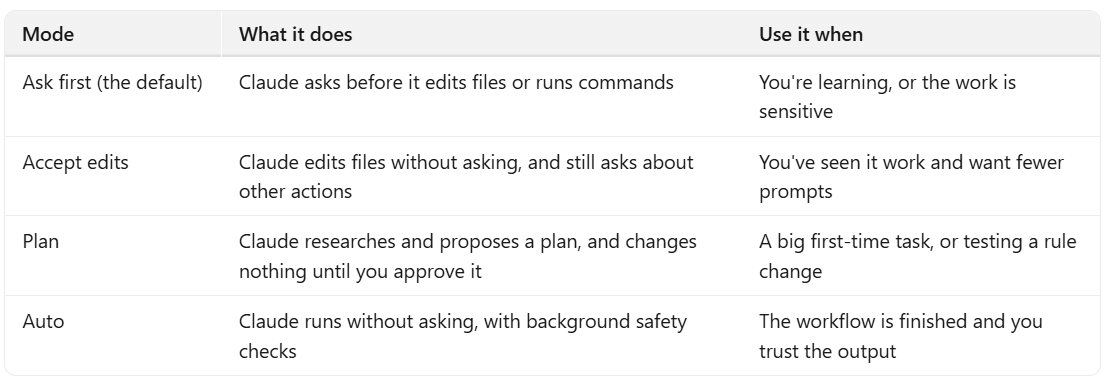
💡The tip we give every beginner: stay in a mode where you approve things for the first few weeks. You learn what the agent does, what you'd approve and where to stop it. Then move up.
💡Testing a rule change safely. Say you want to widen the company-size filter but not change your instructions yet. Describe the change, switch to plan mode, and Claude shows how the result would change without touching your files.
How do you run your first workflow?
- Create the project. In a new empty session, paste one prompt that describes the job: the identity, the input, the steps, your rules, the output and the edge cases. Claude sets up the folders and writes the CLAUDE.md.
- Read the CLAUDE.md. It should match your job. Edit anything that doesn't.
- Drop in the CSV. Put your sample file in the input folder.
- Run it. Ask Claude to segment the file in the input folder. In a mode where you approve, it asks before writing anything.
- Read the output. In our webinar, 75 accounts came out as 39 to sequence, 8 to review and 28 excluded. The summary showed the totals, the top reasons for exclusion and the split by industry and company size. A table listed each account with the reason it landed in its bucket.
- Fix the rules, not the output. If an account is in the wrong place, change the rule in CLAUDE.md and run again.
Three buckets is a good pattern for any sorting job: the sure yes, the sure no and the borderline. The borderline bucket is where a human decides.
How do you fix mistakes and change the rules?
- Wrong bucket: find the rule that sent it there, make it more specific and rerun.
- Repeated mistake: correct it in the conversation. Memory can save it.
- A new rule: add it to CLAUDE.md. Keep each rule short and checkable.
- A big change: try it in plan mode first.
- Messy input: tell Claude about quirks in your columns, or add a cleaning step.
How do you stay within usage limits?
Start small, build one piece at a time and plan before you open Claude Code. Claude's usage limits are tighter than a typical chat tool's, so a few habits go a long way.
- Don't load everything at once. Build one piece, check it, then add the next.
- Start on Sonnet, not Opus.
- Plan first. If you know the project and the output before you start, Claude doesn't spend tokens working it out. Some of our team write the project scope in a regular chat model, then bring it across.
- Mind the refresh window. On our plan, usage refreshes every five hours. For a big job, start before the reset so the work is split across two windows.
- Compact long conversations every six to eight messages instead of waiting for it to happen automatically.
- Don't use it like a chat tool with no limits.
Once a workflow runs well on a CSV, the next step is to connect your tools so it can pull live data and act on it. That's done through MCP, and it's how Claude reaches your CRM, a data tool and your sending tools.
- Connect Claude Code to your tools and run GTM workflows end to end: Claude Code for GTM.
- Compare it with other GTM tools: our guide to the top Clay alternatives.
Ready to run GTM with Claude? Read how we connect tools and run workflows end to end in Claude Code for GTM, or ask us to scope a workflow for your team.
FAQs:
1. What is Claude Code? It's Claude working inside a folder on your computer. It can read and write your files, follow rules you write, and use connected tools. Claude chat can only answer in the conversation.
2. Do I need to know how to code to use Claude Code? No. For GTM work you write instructions in plain English. If you can write a process document and describe your offering, you can use it.
3. Is Claude Code free? Access depends on your Claude plan. Check Anthropic's pricing page for current plans and limits.
4. How do I install Claude Code? Download the Claude desktop app, sign in and open the Code tab. It's available for Mac and Windows, with a Linux version in beta.
5. What is CLAUDE.md? It's the instruction file Claude reads at the start of every session. It holds your rules. Keep it short and never put keys or tokens in it.
6. What's the difference between CLAUDE.md and memory? CLAUDE.md is the rules you write. Memory is a notebook Claude builds from your corrections as you work. Both are loaded at the start of a session.
7. Can Claude Code connect to HubSpot and my other tools? Yes, through MCP. Get a first workflow working on a CSV first, then connect tools one at a time.